01
Focus on cue.
Nothing else is bright, so every eye goes where you point.

01: The Focus
The whole picture, one point at a time.
SparkSpotlight is a PowerPoint add-in for Windows and Mac. You add spotlights while editing. The finished deck plays in any PowerPoint, with no add-in needed to present or view it. Every way to highlight part of a slide
Launching soon
See how it works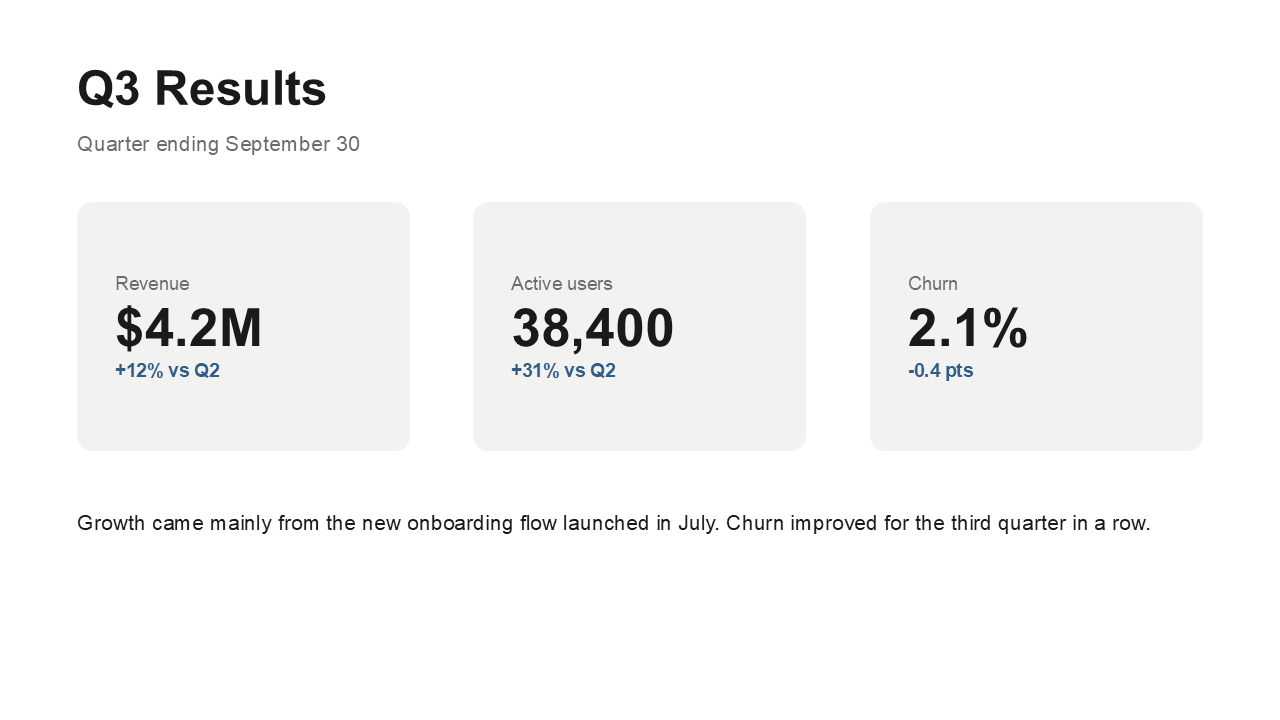

Demo video coming soon
It holds the whole story: a workflow with eight steps, a framework where every box connects to the next, a dashboard with a chart and five numbers. It belongs on one slide, because the connections are the point.
But the moment it appears, the room reads everything at once. You are explaining step three while they are still on step seven.
So you try the workarounds. Split it across six slides, and the big picture is gone. Build it with entrance and exit animations, and you spend an hour in the Animation Pane, one misclick away from the wrong box appearing. Reach for the laser pointer, and on a video call the dot is easy to miss.
SparkSpotlight leaves your slide exactly as it is. In slide show, click any element: the rest of the slide dims, that element stays bright, and a card gives its key point. Click anywhere and the full slide returns. Then take the next point.
01
Nothing else is bright, so every eye goes where you point.
02
One slide, not six. After every point, the audience comes back to the whole.
03
No animation timelines. Select an element, type its key point, click Add spotlight. When you change the slide later, Rebuild brings its spotlights up to date.
01
A number, a box, a picture, a table, a chart or a text box. One spotlight per element, and as many elements per slide as you need.
02
Add an optional title and a key point of up to 240 characters. Choose where the card sits, or let Auto find the side with the most room.
03
In slide show, click the element to open its spotlight. Click anywhere to close it, and you are back on your slide, ready for the next point.
04
Add, Update and Remove each take one click. Remove all clears the deck, and Rebuild refreshes spotlights after you edit a slide.
05
Everything happens in a pane beside your slide: no other app, and nothing is uploaded. Your slide is never replaced, so its notes, comments and animations stay as they were.
06
The finished deck presents on Windows or Mac, with no add-in needed to present or view it.
01
Select an element on your slide: a number, a box, a picture, a chart.
02
Type a title and the key point, and choose where the card sits.
03
Click Add spotlight. In slide show, click the element to open it and click anywhere to close.
01
When SparkSpotlight launches, buy and download the add-in file (the manifest).
02
Put it in your add-ins folder, for example C:\PPTAddin (the same folder SparkEmbed uses is fine). If you do not have one yet, create a plain folder with no spaces in the name, for example on your C drive, and move the file into it.
C:\PPTAddinRight-click the folder, choose Properties, open the Sharing tab, click Share, pick your own username, then Share and Done. The Sharing tab now shows a network path that begins with two backslashes, such as \\YOUR-PC\PPTAddin. Copy that path.
03
Share that folder and add it in PowerPoint under File > Options > Trust Center > Trust Center Settings > Trusted Add-in Catalogs.
04
Restart PowerPoint, then Insert > My Add-ins > Shared Folder > SparkSpotlight.
05
Select an element, type your key point, click Add spotlight, and play the slide show.
01
When SparkSpotlight launches, buy and download the add-in file.
02
In Finder, choose Go > Go to Folder and paste the path below. If the final wef folder does not exist yet, create it.
~/Library/Containers/com.microsoft.Powerpoint/Data/Documents/wef03
Drop the add-in file into the wef folder.
04
Restart PowerPoint, then Insert > Add-ins > My Add-ins > SparkSpotlight.
05
Select an element, type your key point, click Add spotlight, and play the slide show.
Check the folder step, then restart PowerPoint. Still missing: clear the Office add-in cache (Windows %LOCALAPPDATA%\Microsoft\Office\16.0\Wef\, Mac the wef folder above, keeping your add-in files) and restart.
Adding spotlights needs Microsoft 365 (Windows 2601+, Mac 16.105+). Presenting works in any version.
The element has its own link. Remove it (right-click > Remove Link) or choose another element.
Set that slide's transition to None or Fade.
Click Rebuild this slide.
Type the slide number and press Enter, or right-click > See All Slides.
Click Rebuild all to repair it.
The add-in and the PDF setup guide arrive at launch.
No. The spotlights are ordinary PowerPoint slides and links. Anyone can present or view the deck in PowerPoint on Windows or Mac.
Yes. You can add spotlights with Microsoft 365 PowerPoint for Mac 16.105 or later, and decks play on any Mac PowerPoint.
Your slide is never replaced. SparkSpotlight adds hidden spotlight slides after it and links the element to them. Comments, notes and animations stay as they were. Remove all spotlights undoes it.
Not yet. Version 1 spotlights whole elements: a chart, a shape, a picture, a table. To stress one point, draw a small shape over it and spotlight that. Area highlighting is planned.
A clicker's Next button continues the deck as usual. Open a spotlight with a mouse click or a tap.
Yes. The spotlight is part of your slides, so it appears on any screen share and in recordings.
One per element, and as many elements as you like.
Click Rebuild this slide and the spotlights update.
Adding spotlights: Microsoft 365 on Windows (2601 or later) or Mac (16.105 or later). Presenting: any PowerPoint on Windows or Mac.
SparkSpotlight is a one-time purchase, with no subscription. The price is announced at launch.
No. SparkSpotlight runs inside PowerPoint. There is no server.
The manual method (duplicate slides, masks, Morph) takes minutes per point and breaks when the slide changes. SparkSpotlight builds it in one click and rebuilds it when the slide changes.
Live web pages on your slide? → SparkEmbed puts a live, interactive web page directly on a slide.
Want the whole deck on the web? → SparkPublish turns a full presentation into a shareable website.
Animated titles for the same deck? → SparkText makes GIF/MP4 title animations for PowerPoint.
Launching soon
See how it works