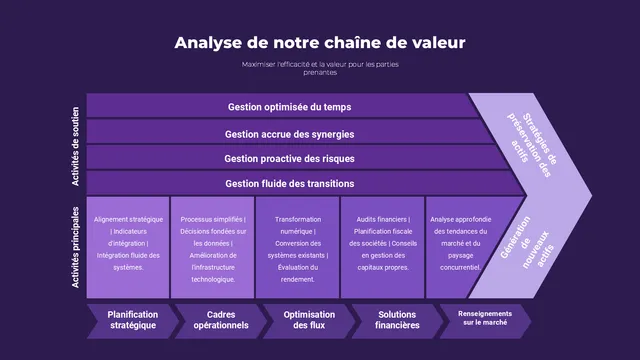
Yes, you can translate a PowerPoint deck into French without uploading it anywhere or losing your formatting. SparkSlides ppt-translate is a free Claude skill that works inside PowerPoint itself. Your deck never leaves your computer.

Free, open-source skill for Claude in PowerPoint

Translate your deck into French. Nothing moves.

Every shape stays where it was. Every font stays what it was. Every animation still fires. No paragraph ends up longer than it started. Your deck comes back as your deck, in French.

The skill is free and open source. It runs inside Claude for PowerPoint, which requires a Claude Pro, Max, Team or Enterprise plan.

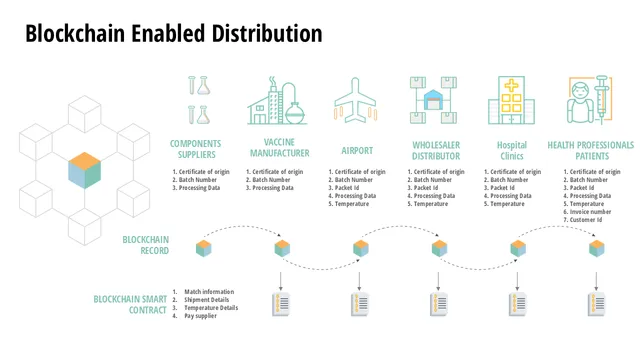
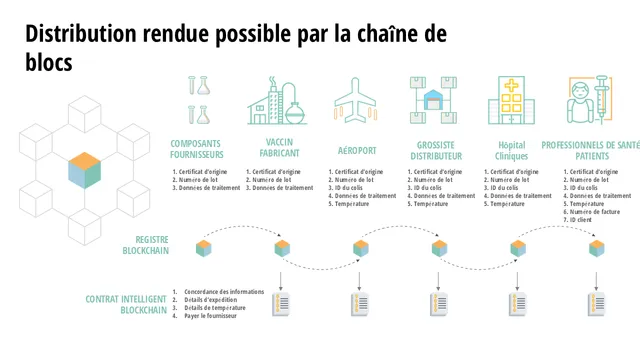
Before / after visual — coming soon

The differentiator

Your deck stays with you.

01

No upload, no download

Every other translation tool asks you to upload your file to a website, wait, and download a result. Your deck contains your content, your brand, your data. ppt-translate works inside PowerPoint itself. The file never leaves your computer.

02

Your formatting survives

A translated deck that lost its layout is a deck you have to rebuild. ppt-translate measures every paragraph against your actual fonts to make sure the French still fits. When it does not, it rewrites shorter rather than shrinking your text or stretching your boxes.

03

Free and open source

No subscription, no per-slide fee, no character limit, no trial that expires. The skill is MIT-licensed and the source is on GitHub. You own it.

How it compares

A different starting point, not a longer feature list.

Most PowerPoint translation tools work the same way: you upload your file to a website, it translates the text, you download the result. Some preserve formatting well; some do not. All of them require your file to leave your hands.

ppt-translate takes a different approach. It runs as a skill inside Claude for PowerPoint, so your deck stays open on your screen the whole time. There is no upload step, no download step, and no copy of your file on someone else's server.

It is also free, with no slide limit, no character cap, and no trial period. The skill itself costs nothing. Using it requires a Claude subscription, which you may already have. The five most-used alternatives charge per slide, per file, or per month on top of whatever you already pay for the tools they run in.

How it works

How to use it

  1. 01

    Get Claude for PowerPoint

    Claude is an AI assistant made by Anthropic. Claude for PowerPoint is an official add-in that puts Claude in a panel beside your slides. It runs on PowerPoint on the web, PowerPoint for Windows (Microsoft 365), and PowerPoint for Mac. It does not run on PowerPoint 2016/2019 perpetual licenses, PowerPoint for iPad, or PowerPoint for Android.

    If you do not have it yet:

    • Open PowerPoint, go to the Insert tab (or Home tab on some versions), and click Get Add-ins (or Add-ins).
    • Search for "Claude for Microsoft 365" or "Claude by Anthropic".
    • Click Add (or Get it now), then open the add-in from the ribbon and sign in with your Claude account.

    This is a one-time setup. Once it is installed and you are signed in, Claude appears in your PowerPoint ribbon every time you open the app.

    Claude for PowerPoint requires a paid Claude plan (Pro, Max, Team, or Enterprise). It is not included on Claude's free plan. ppt-translate itself, the skill you add in Step 2, is free either way.


  2. 02

    Add the ppt-translate skill

    A skill is a set of instructions that tells Claude how to do a specific job. You add it once to your Claude account, and it stays available every time you open PowerPoint, Excel, Word, or Outlook with Claude signed in. There is nothing separate to install inside PowerPoint itself.

    • Download ppt-translate.zip from the button at the top of this page.
    • Go to claude.ai (or the Claude desktop app), open Settings, and under Capabilities turn on Code execution and file creation if it is not already on. This is required before a skill can be uploaded.
    • Go to Customize > Skills, click +, choose Create skill, then Upload a skill, and select the ZIP file.

    That is the whole install. Back in PowerPoint, Claude applies the skill automatically when you ask it to translate, or you can type / in the sidebar and select it directly.

  3. 03

    Open your deck and ask

    Open the PowerPoint file you want translated. In the Claude panel, type:

    "Translate this deck into French."

    Claude reads every slide, translates the text, measures whether each line still fits, and writes the French back into your shapes. When it is done, it gives you a report saying exactly what it did and what it could not do.

    Save the file. You are done.

  4. 04

    Tell it your own terminology (optional)

    If you have specific terms you want used, say so in the same message:

    "Translate this deck into French. Use 'courtier immobilier' for broker, and leave Acme Corp in English."

    Or paste a glossary for a longer list. Your choices win over the skill's own.

The short version

What it is
A free Claude skill that translates PowerPoint decks into French
How it works
Inside Claude for PowerPoint. Your deck stays on your screen
What it preserves
Shape positions, fonts, animations, paragraph line counts
Languages
French (Quebec and France variants). More coming
Cost
Free, MIT-licensed, no limits
Requires
Claude for PowerPoint (Claude Pro, Max, Team or Enterprise plan)
Best for
Business decks, client proposals, reports, pitch decks

What it does well

What the skill handles

What it won't do

Every one of these is named in the report when it applies, rather than left for you to discover.

Frequently Asked Questions

How do I translate a PowerPoint into French without losing the formatting?

Install Claude for PowerPoint, add the free ppt-translate skill, open your deck, and ask Claude to translate it into French. The skill measures every paragraph against your actual fonts and rewrites text shorter when needed, rather than shrinking text or resizing your shapes.

Is ppt-translate free?

Yes. The skill is free and MIT-licensed, with no subscription, no per-slide fee, and no character limit. Running it requires Claude for PowerPoint, which needs a paid Claude plan.

Does my file get uploaded anywhere?

No. ppt-translate runs inside Claude for PowerPoint on your own screen. There is no upload step, no download step, and no copy of your file sent to a server for translation.

What is Claude for PowerPoint?

Claude for PowerPoint is Anthropic's official add-in that puts Claude in a panel beside your slides. ppt-translate is a skill that runs inside it.

Do I need a Claude account?

Yes, and it needs to be a paid one. Claude for PowerPoint requires a Claude Pro, Max, Team, or Enterprise plan; it is not included on the free plan.

Do I need a paid Claude plan?

Yes. Claude for PowerPoint, the add-in ppt-translate runs inside, requires a Claude Pro, Max, Team, or Enterprise plan. The free Claude plan does not include it. The ppt-translate skill itself is free either way.

Can it translate into languages other than French?

Not yet. Ask for German or Spanish and it says so up front rather than guessing. More languages are coming, each one only after it has been verified by a native speaker.

What happens if the French text is too long for a box?

The skill rewrites the line shorter so it still fits. It does not shrink your font size or stretch your text box to make room.

Can I choose between Quebec French and France French?

Yes. ppt-translate chooses fr-CA or fr-FR based on your deck's own content, and you can say which one you want directly in your request.

Can I keep certain terms in English?

Yes. Name the terms in your request, for example "leave Acme Corp in English," or paste a longer glossary. Your choices win over the skill's own.

How do I know what was translated and what was not?

ppt-translate gives you a report after every run stating exactly what it changed and what it could not translate, such as charts, images, or SmartArt.

Your next deck can speak French.